

Find required keys
Follow these two steps to find the session cookie and authorization header required by `@orcushq/deepseek` in Chrome DevTools. You must be signed in to DeepSeek Web before collecting these values.
1. Find the DS Session ID
- Open https://chat.deepseek.com/ and sign in to your DeepSeek account.
- Open Chrome DevTools by pressing F12 or Ctrl+Shift+I.
- Navigate to the Application tab.
- In the sidebar, expand Storage → Cookies.
- Select https://chat.deepseek.com.
- Find the
ds_session_idcookie and copy its Value, not the cookie name or the complete Cookie header. - Use this value for the
dsSessionIdoption in your SDK configuration.
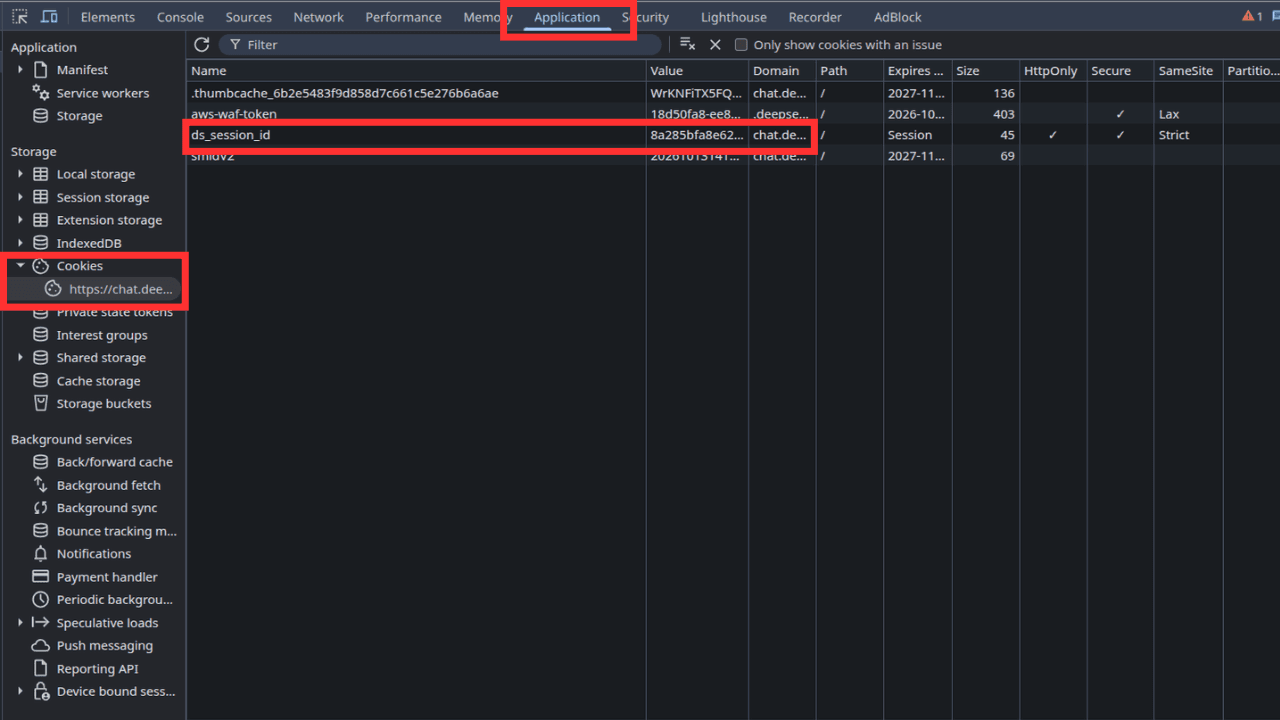
ds_session_id.2. Find the Authorization header
- Open the Network tab in Chrome DevTools.
- Send a message in DeepSeek to generate a network request.
- Select the
completionrequest and open the Headers tab. - Under Request Headers, find
Authorization. - Copy its complete value, including a prefix such as
Bearerif present. - Use this complete value for the
authorizationoption in your SDK configuration.
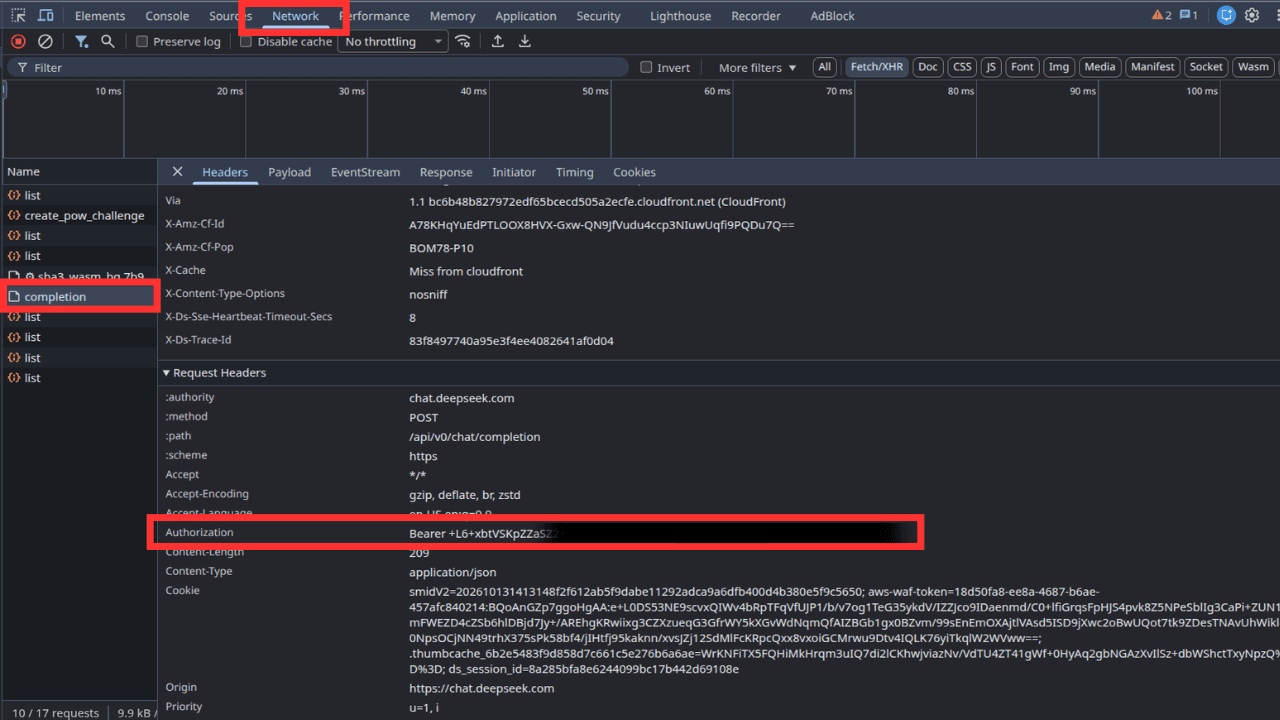
Authorization value from Request Headers.If you cannot find the Authorization header in the completion request, check another recent completion request. Do not substitute a different header without verifying that it is the correct value.
Configure your environment
Store both values in your .env file and pass them to the SDK. Obtain them from the same signed-in DeepSeek session.
DEEPSEEK_SESSION_ID="your_ds_session_id_value"DEEPSEEK_AUTHORIZATION="your_authorization_header_value"import { DeepSeekWeb } from '@orcushq/deepseek' const model = new DeepSeekWeb({ model: 'deepseek-v3', dsSessionId: process.env.DEEPSEEK_SESSION_ID, authorization: process.env.DEEPSEEK_AUTHORIZATION,})